
As an Amazon Associate we earn from qualifying purchases at no extra cost to you.
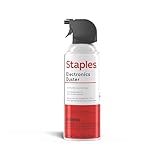


Compressed air for cleaning pc is the absolute best way to remove stubborn dust and maintain peak hardware performance over time. Overheating, loud fan noises, and sudden thermal throttling are common symptoms of a dirty rig. Fortunately, this detailed, step-by-step guide will walk you through the entire process safely and highly efficiently here!!

🛒 Best Price Today on Amazon
Prime members get fast, free shipping on everything above, plus member-only deals. New members get a 30-day free trial — cancel anytime.
Essential Preparation for Proper Computer Maintenance
Before you begin blast-cleaning your expensive rig, you need to understand that proper preparation is key to preventing static electricity and hardware damage. This section focuses on laying the groundwork, gathering the necessary tools, and understanding why regular maintenance is vital for modern high-performance computers.
Why You Need Compressed Air for Cleaning PC Systems
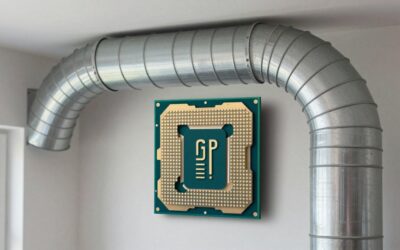
Dust is the silent killer of modern computer systems. Over time, microscopic debris settles on sensitive components, forming an insulating blanket that traps heat. This insulation forces your cooling fans to spin faster, creating excessive noise and wearing out the bearings prematurely. When temperatures cross critical thresholds, your CPU and GPU will automatically throttle their performance, leading to frame drops in gaming and sluggishness in demanding tasks.
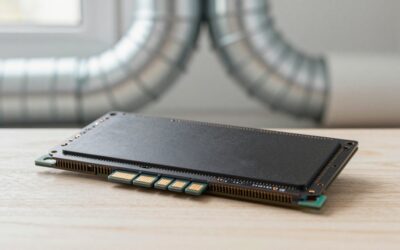
Using a specialized air spray is the safest and most efficient way to dislodge this debris without physically touching sensitive electronics. Physical contact with standard brushes or household vacuums can generate static electricity or physically snap delicate surface-mounted components off your motherboard. Investing a tiny amount of time in maintenance can restore factory-level thermal performance and save you from expensive replacement bills down the line.
Essential Equipment and Tools for PC Dust Removal
To achieve professional-grade results, you must assemble the correct toolkit before opening your computer chassis. Attempting to clean a computer with suboptimal tools often leads to incomplete cleaning or, worse, irreversible static damage to your RAM and graphics card.
Here is the essential checklist of what you will need:
- A high-quality can of air spray: Look for moisture-free formulations designed specifically for electronics to ensure no liquid residue is sprayed onto your circuits.
- A specialized microfiber cloth: You should choose a specialized microfiber cloth like [Microfiber Cleaning Cloths] to avoid scratching the surface of delicate case panels or tempered glass.
- An anti-static wrist strap: Protecting your motherboard from static discharges is easy if you wear a budget-friendly strap like [Anti-Static Wrist Band] during the process.
- A set of small screwdrivers: You will need a reliable, magnetic screwdriver set such as [Precision Screwdriver Kit] to easily open your PC case without dropping screws onto your motherboard.
- A high-filtration face mask: Guard your lungs against years of accumulated dust particles by using a comfortable mask like [Disposable Dust Mask] while spraying the internals.
Critical Safety Precautions Before You Open Your PC Case
Working on electronic devices always carries inherent risks that you must actively mitigate. The first rule of computer maintenance is to disconnect the system entirely from the mains power grid. Simply turning off the power switch on the back of your power supply unit (PSU) is not sufficient; you must physically unplug the power cable from the wall outlet. After unplugging the power cable, press and hold the PC power button on your case for at least ten seconds to discharge any electrical current remaining in the motherboard capacitors.
Furthermore, you should never perform this cleaning process on a carpeted floor. Carpets are notorious for generating significant static charges with the slightest human movement. Instead, place your computer on a wooden, tiled, or anti-static surface in a well-ventilated area, preferably outdoors or near a large open window. If you must clean your computer indoors, consider using an air purifier nearby to capture airborne dust particles before they settle back into your clean components.
How to Execute Your PC Cleaning Routine Efficiently
Now that your workspace is fully prepared and your safety measures are in place, we can dive into the actual cleaning methodology. This section details the precise, step-by-step instructions and technical maneuvers required to use your cleaning canisters effectively without causing mechanical failures.
Step-by-Step Instructions Using Compressed Air for Cleaning PC Units
Follow this structured, logical cleaning sequence to achieve optimal thermal results and ensure your system remains undamaged throughout the process.
- Remove the side panel of your PC case: Use your precision screwdriver to carefully loosen the screws holding your side panel. Gently slide the panel off and place it on a soft surface, such as a towel, to avoid scratching or shattering tempered glass.
- Hold the can completely upright at all times: Never tilt, shake, or turn the canister upside down while spraying. Doing so causes the liquid propellant to freeze and spray out of the nozzle, which can instantly crack warm circuits or leave a conductive liquid residue.
- Keep a safe distance from delicate hardware: Always position the plastic straw attachment at least five to six inches away from motherboard surfaces, graphics cards, and memory modules to prevent high-velocity air from dislodging tiny capacitors.
- Spray in short, concentrated bursts: Avoid holding down the spray nozzle for extended periods, as this causes the can to drop in temperature and pressure. Short bursts of one to two seconds maintain maximum air velocity and prevent condensation.
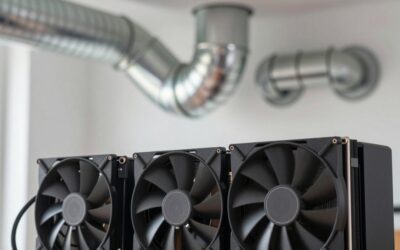
- Clean the cooling fans systematically: Hold the fan blades firmly with a finger or a non-conductive tool to prevent them from spinning while you spray them. Letting fans spin freely from high-pressure air can damage their bearings and generate reverse voltage.
- Blast the power supply chamber and hard drive bays: Target the bottom section of your case where the PSU lives, blowing dust out through the rear mesh. Proceed to blow debris out of hard drive trays and cable management channels.
- Reassemble and verify your system connections: Wipe down the outer edges of the case with your dry microfiber cloth, gently reinstall the side panels, reconnect your cables, and boot your refreshed PC to verify smooth operation.
Expert Techniques to Safely Clean Delicate Circuitry
When dealing with high-end graphic cards and intricate CPU cooler heatsinks, standard blowing might not clear out compacted dust bunny blockages. For deep-cleaning heatsinks, aim your air stream directly through the aluminum fins from the inside out. This pushes the debris back along the path it entered, preventing it from getting compacted deeper between the metal plates. If you encounter stubborn dust that refuses to dislodge, do not scrape the circuit board with metal tools under any circumstances.
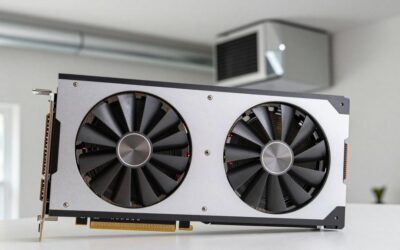
Instead, use a soft-bristled, anti-static nylon brush to gently loosen the grime, then follow up with a quick blast of air to clear the residue. For graphics card backplates and RAM slots, blow parallel to the surface rather than directly down at a ninety-degree angle. This angled approach lifts dust off the surface and carries it away, rather than driving it deeper into tiny crevices or empty PCIe slot connections.
Common Mistakes to Avoid When Cleaning PC Components
The most frequent error beginners make is shaking the air can like a spray paint bottle. Shaking destabilizes the liquid propellant inside, dramatically increasing the risk of spraying freezing liquid onto your delicate electronics. Another massive mistake is using household vacuum cleaners to suck dust out of the PC internals. Vacuum nozzles generate immense static electricity at their tips, which can easily fry delicate microchips upon contact.
Additionally, never use compressed air on your computer while the system is turned on or plugged in. The sudden thermal shock of cold air hitting hot, energized components can lead to structural micro-fractures in silicon chips. Lastly, avoid using your own breath to blow away dust. Human breath contains microscopic droplets of moisture that can cause corrosion on copper heat pipes and delicate gold-plated contact points over time.
Choosing the Best Tools for Longevity and Performance
Choosing the right approach to maintaining your computer involves balancing initial costs, long-term efficiency, and ease of use. In this final section, we will analyze the direct advantages and disadvantages of canned air versus alternative technologies, discuss eco-friendly options, and establish a long-term maintenance routine.
Pros and Cons of Canned Compressed Air for Cleaning PC Hardware
When deciding which route to take for your computer maintenance, it is crucial to understand the trade-offs of canned air.
The Advantages:
- Exceptionally low initial cost: You can purchase a high-quality can of air spray for under $15, making it highly accessible for budget-conscious users.
- Maximum portability and convenience: Canned air requires no electrical outlets or charging cables, allowing you to clean your computer anywhere.
- Precision airflow: The narrow plastic straw allows you to direct high-velocity air into the tightest, most inaccessible spaces of your motherboard.
- Zero risk of static generation: Unlike electric dusters, canned air does not use a motorized fan that could generate localized static charges.
The Disadvantages:
- Short overall lifespan: A single can typically lasts for only two to three deep cleaning sessions, requiring constant repurchases.
- Temperature drops during use: The can freezes rapidly during prolonged use, causing a significant loss in air pressure and requiring you to wait.
- Chemical propellants: Canned air contains fluorocarbons that can be harmful to inhale in poorly ventilated areas and carry a minor carbon footprint.
Budget-Friendly Options and Eco-Conscious Cleaners
If you clean multiple computers regularly or manage a small office network, purchasing individual cans of air spray can quickly become expensive. A great long-term alternative is an electric computer duster, which uses an electric motor to blow a continuous stream of filtered, dry air. While these devices have a higher upfront cost, usually ranging from $45 to $80, they pay for themselves after a year of regular use and eliminate chemical waste.
For those sticking to canned options, look for brands that utilize eco-friendly propellants with low global warming potential. Always buy canisters in bulk packs of three or four on Amazon to reduce packaging waste and secure a lower cost per unit. Additionally, remember to recycle your empty aerosol cans properly according to your local municipal guidelines once they are completely discharged.
Setting Up an Optimal Computer Cleaning Schedule
Maintaining a consistent cleaning schedule is the single best way to ensure your computer hardware remains fast, quiet, and reliable for years. For an average home office setup, performing a quick dust blowout every three to six months is highly sufficient to keep thermals under control. However, if your computer sits on the floor, or if you live in a household with shedding pets, you should increase this frequency to once every two months.
Gaming rigs and high-workload workstations benefit immensely from a deep-cleaning routine scheduled twice a year. Mark your calendar for biannual maintenance sessions where you completely remove the graphics card and clean the fans thoroughly. By staying proactive, you will prevent dust from ever solidifying into a sticky grime layer, ensuring your system runs at peak efficiency year-round.
Conclusion
In conclusion, knowing how to safely utilize compressed air for cleaning pc systems is an indispensable skill for any modern computer user. By adhering to the step-by-step procedures outlined in this guide—such as holding the can upright, securing fan blades, and working in a static-free environment—you can easily protect your hardware from thermal throttling and premature failure. Regular maintenance not only restores your computer’s quiet operations but also safeguards your expensive processors from permanent heat damage.
Now is the perfect time to give your computer the care it deserves. Make sure to equip yourself with the absolute best cleaning tools, high-quality air canisters, and anti-static gear by checking out the top-rated maintenance products on Amazon today. Taking action now will ensure your rig delivers smooth, lightning-fast performance for years to come!
Frequently Asked Questions
Is canned compressed air safe for computer components?
Yes, when used correctly. Keep the can upright to avoid spraying liquid propellant, hold it six to twelve inches away, and use short bursts. Tilting the can discharges freezing liquid that can thermally shock components or leave residue. Always power down and unplug the machine before blowing anything out.
How often should I clean dust out of a PC?
Every three to six months for a typical desktop, or every one to two months if you have pets, carpet, smokers, or the tower sits on the floor. Laptops need attention roughly twice a year. Rising fan noise and higher idle temperatures are the practical indicators that intake filters and heatsink fins are clogged.
Why should I hold the fans still while spraying?
Spinning a fan with compressed air turns it into a small generator, and the resulting voltage spike can damage the motor controller or the motherboard header. Hold each blade set with a finger or a zip tie before you spray. This single habit prevents the most common self-inflicted damage during cleaning.
Should I do this indoors, and does it affect air quality?
Blowing out a PC indoors dumps a concentrated cloud of fine dust straight into your breathing zone. Take the tower outside or onto a balcony when possible, or use a vacuum with a HEPA filter to capture the debris at the source. Wear a mask if you are dust-sensitive or asthmatic.
Is an electric air duster better than canned air?
For frequent use, yes. Electric dusters produce continuous dry airflow with no propellant, no freezing, no cost per can, and no HFC greenhouse emissions. They are louder, often 70 to 80 dB, so wear hearing protection. Canned air still wins for portability and for reaching into tight laptop vents with a straw.

Write Your Review
No reviews yet. Be the first to share your experience!